If your sales team spends hours digging through emails, CRM records, and file libraries, this setup fixes that by keeping prep, meeting notes, CRM updates, and follow-up in Microsoft 365.
I’d sum it up like this: the copilot uses Teams for call prep and recaps, Outlook for draft emails, Dynamics 365 Sales for account and deal records, and SharePoint for approved documents like specs, proposals, and SOPs. For firms with long deal cycles, that matters because staff in AEC can lose 15–20 hours per week just searching for info across disconnected systems.
Here’s the short version of what I’d want to know up front:
- What it does: cuts manual admin and keeps deal context in one place
- Where it works: Teams, Outlook, SharePoint, and Dynamics 365
- What sellers get: meeting prep, recaps, CRM note drafts, coached follow-ups, and next-step suggestions
- What makes it work: clean CRM data, organized SharePoint files, and correct permissions
- What can go wrong: bad access settings, weak transcript rules, and poor audit logging
- What to launch first: one recap-to-CRM workflow for one sales team
- How to measure it: CRM note completion, follow-up quality, time saved, and deal-cycle movement
In plain terms, I see this as a workflow tool more than a chat feature. It helps sales teams prepare before the call, document what happened, and send the right follow-up after it - without jumping between systems or relying on memory.
That also means rollout is not just a license decision. You need Entra ID access rules, transcript retention settings, Purview policies, and logging set before broad use. If those pieces are loose, output quality drops and trust in the system drops with it.
So if I were evaluating this for a U.S. enterprise team in AEC, manufacturing, or aerospace, I’d focus on one question: Can this turn scattered sales work into a repeatable flow inside the tools reps already use? This article shows where that happens, what data each app supplies, and what to put in place before launch.
Microsoft Sales Copilot: Everything You Need to Know (Full Demo)
How the Copilot Works Across Teams, Outlook, SharePoint, and Dynamics 365
The copilot ties together Dynamics 365 Sales, Teams, Outlook, and SharePoint so sellers can get ready for calls, record what happened, and send follow-ups without bouncing around Microsoft 365. In day-to-day sales work, that connection matters a lot. Organizations can find the right AI starting point to ensure these tools align with their specific needs. It keeps context in one flow instead of forcing reps to piece things together by hand.
| App | Primary Job | Data Used | Output |
|---|---|---|---|
| Dynamics 365 Sales | CRM & data backbone | Account, lead, and opportunity records | Contextual grounding for deal status and history |
| Microsoft Teams | Meetings & collaboration | Transcripts, chat threads, shared files | Meeting recaps, action items, CRM notes |
| Outlook | Email & follow-up | CRM context, past emails, document links | Coached email drafts, tone analysis, follow-up nudges |
| SharePoint | Knowledge base | Proposals, specs, playbooks, SOPs | Grounded answers for technical queries and RFI support |
Teams for Meeting Prep, Recap, and Deal Collaboration
Before a call, the copilot pulls recent account and opportunity context from Dynamics. That gives the seller a quick view of where the deal stands and what happened last.
During the meeting, it records the transcript and flags unresolved questions as they come up. After the call, it turns that discussion into a clean recap with next steps, open questions, and CRM notes. Those notes can then be pushed into Dynamics, which saves time and cuts down on missed details. That same recap also becomes the starting point for follow-up emails in Outlook.
Outlook for Email Drafting and Coaching
In technical sales, one sloppy follow-up email can slow a deal down fast. The copilot drafts follow-ups using opportunity context from Dynamics and the meeting recap from Teams. Then it coaches the rep on tone, precision, and structure before anything goes out.
That means the message is not just polished. It’s tied to what was said, what was promised, and what the account history shows. For renewal nudges or stakeholder summaries, the copilot brings in the right relationship context so the email matches the actual state of the account.
SharePoint and Dynamics as the Knowledge and Data Backbone
Under both the meeting flow and the email flow sits the approved knowledge layer. If a seller needs details from a past proposal or a product spec during follow-up, the copilot pulls from approved SharePoint content instead of making a guess.
Here’s the simple split:
- Dynamics supplies the deal facts
- SharePoint supplies the technical and process knowledge
That division helps keep answers grounded in what the company already knows and approves. Clean Dynamics records, well-organized SharePoint libraries, and sensitivity labels all help keep the output dependable.
Core Seller Workflows for Sales Coaching
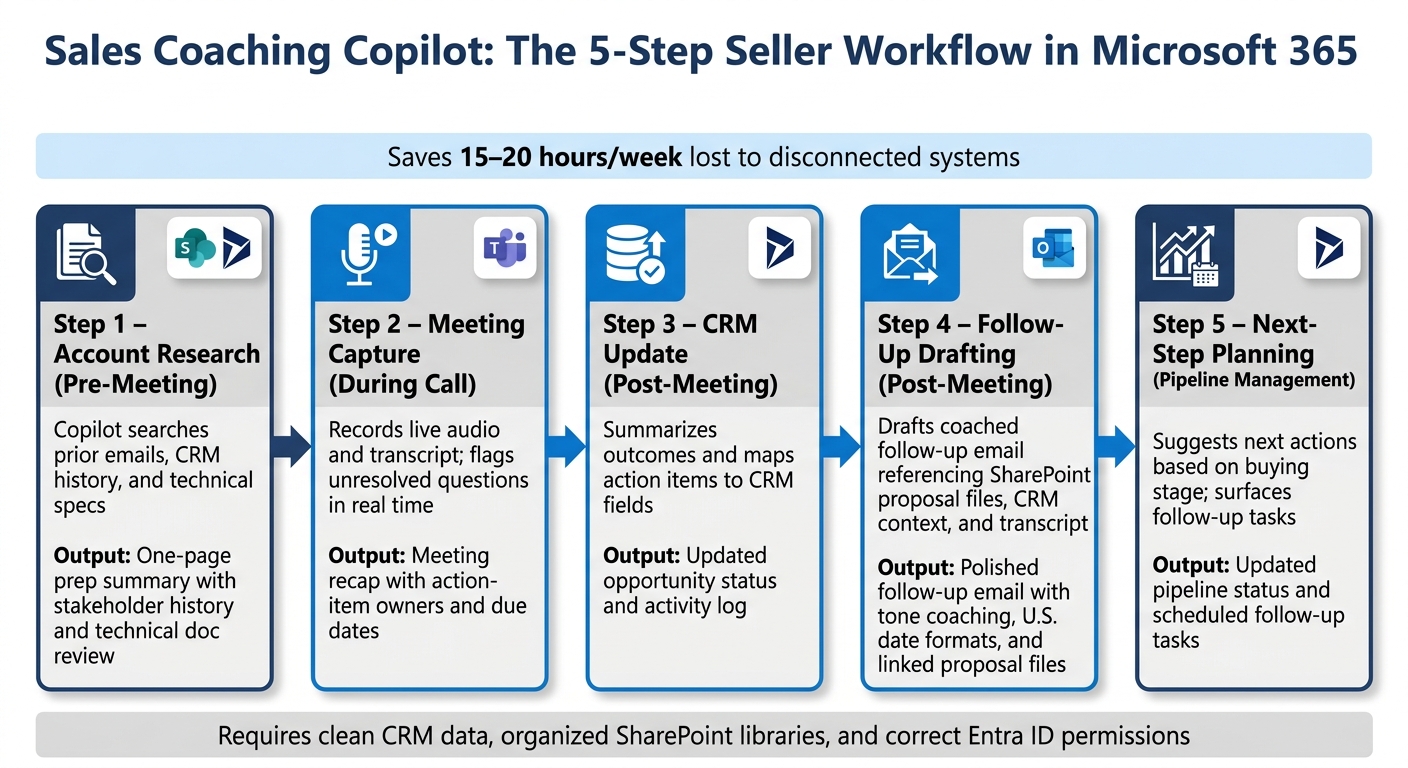
Sales Coaching Copilot Workflow: Prep, Capture, Follow-Up in Microsoft 365
Once the app roles are set, this is the seller workflow in plain terms: prep before the call, capture during the call, and automate follow-up after it. That pattern fits complex AEC, AEC, manufacturing, and aerospace deals, where sellers need to keep up with long sales cycles, many people, and a lot of technical detail.
| Workflow Step | Microsoft App | Data Source | Copilot Action | Seller Output |
|---|---|---|---|---|
| Account Research | SharePoint / Dynamics 365 | Prior emails, technical specs, CRM history | Context search | Short prep summary, stakeholder history, and technical doc review |
| Meeting Capture | Microsoft Teams | Live audio & transcript | Note generation & action-item extraction | Meeting recap with owners and dates |
| CRM Update | Dynamics 365 | Teams recap / transcript | Summarizes outcomes and maps action items to CRM fields | Updated opportunity status and activity log |
| Follow-Up Drafting | Outlook | SharePoint proposal files, CRM, transcript | Drafts email referencing approved proposal files and next-best actions | Coached follow-up email with U.S. date formats and linked proposal files |
| Next-Step Planning | Dynamics 365 | CRM data, buying stage | Suggests next actions based on buying stage | Updated pipeline status and scheduled follow-up tasks |
Before the Meeting: Account Research and Prep
In practice, the copilot starts with prep. Before a qualification or review meeting, it pulls from approved account context and turns it into a one-page briefing. That gives sellers a short view of stakeholder history, past CRM activity, and the technical background and automated document review tied to the deal.
The point is simple: the seller walks into the call already grounded in the account instead of scrambling through old emails, specs, and notes.
During and After the Meeting: Notes, Actions, and CRM Updates
During the Teams call, the copilot works from the live audio and transcript to capture what was said and pull out action items as the conversation moves along. That matters in deals where one missed detail can throw off the next step.
After the meeting ends, it creates draft notes and a CRM summary. The seller then reviews the draft, fixes anything that needs a human check, and sends the update into Dynamics 365. So the process stays fast, but the seller still stays in control.
Post-Meeting: Coached Follow-Up Emails and Next-Step Planning
After the CRM update, that same context carries into follow-up. The draft email includes action-item owners, due dates in U.S. format, such as October 3, 2026, and links or references to the proposal files and other documents discussed in the meeting.
Before anything goes out, the copilot coaches the seller on tone and structure. Then it suggests next actions based on the account’s buying stage and surfaces follow-up tasks in Dynamics 365, so the pipeline status and next touchpoints stay current.
Permissions, Governance, and Deployment Readiness
Once the seller workflow is set, rollout comes down to three things: access control, transcript policy, and audit trails.
Permission-Aware Knowledge Access and Data Boundaries
The copilot inherits Entra ID, SharePoint, and Dynamics 365 permissions, so it only shows content the signed-in user already has access to. That means permission cleanup needs to happen before rollout, not after.
In sales coaching, this is a big deal. These controls shape whether the copilot can be relied on during live deal work. If permissions are wrong, the system can pull the wrong account context. And once that happens, coaching quality falls apart. Treat permission cleanup as core rollout prep.
| Governance Topic | Risk | Control | Owner |
|---|---|---|---|
| Data Access | Users seeing sensitive files they shouldn’t access | Inherited M365/Dynamics permissions & Azure AI Search indexing | IT / Security Admin |
| Meeting Transcripts | Unauthorized access to sensitive discussions | Role-based access (RBAC) and automated deletion policies | IT / Compliance |
| AI Accuracy | Incorrect coaching guidance | Retrieval-grounded answers with source citations | Sales Ops |
| Auditability | No record of AI-generated decisions | Centralized logging of AI prompts, retrievals, and outputs | IT / Audit Lead |
Meeting Transcripts, Auditability, and Adoption Controls
Transcript policy has a direct effect on the quality and retention of meeting recaps. Tenant-level policies in Microsoft 365 control where transcripts are stored, how long they stay available, and who can open them. Those policies should be locked in before rollout starts.
For regulated organizations, visibility matters just as much as the controls. Every AI-generated note, CRM update, and email draft should be logged so teams have a clear record of what the system produced and why. Microsoft Purview can help with retention, audit logs, and sensitivity labels. A pilot by team or region gives you room to test policies before moving to an enterprise rollout.
Where Ryshe Fits in a Production Rollout
This is where rollout moves from planning into delivery.
Deploying this copilot is an engineering project, not just a setup task. Ryshe handles the delivery work for this rollout: identity and governance setup, workflow automation, system integrations, and data foundations. Each engagement includes a Solution Architect and Program Manager, along with documented scope, milestones, and acceptance criteria.
For policy enforcement and observability, Ryshe uses Quanta - its enterprise AI context gateway - to monitor how the copilot interacts with corporate data in real time, apply compliance rules, and keep immutable audit logs. Governance isn’t a box to check at the end. It’s built into the architecture from day one.
Conclusion: What to Build First and How to Measure Value
A sales coaching copilot works best when it sits inside Microsoft 365 and runs on clean data with the right permissions in place. The aim is simple: prep, capture, follow up. Once that flow is working, you can start measuring business impact.
First-Phase Use Cases Worth Prioritizing
Start small. In complex deals, a single recap workflow can deliver the fastest return.
Begin with one meeting recap workflow that writes to Dynamics 365 for one sales team. Then expand only after the setup is stable and the team is using it. At this stage, focus on three things first: adoption, speed, and CRM quality.
Key Success Metrics for U.S. Enterprise Teams
After the first workflows go live, measure what changed with outcome-based signals:
| Metric | What to Track |
|---|---|
| CRM update completeness | % of meetings with a structured recap logged in Dynamics 365 |
| Follow-up relevance | Whether the next follow-up clearly reflects the meeting and next step |
| Time saved on prep and admin | Reduction in time spent on account research, data entry, and document hunting |
| Deal-cycle change | Change in average deal length or win-rate trends after rollout |
Watch how much admin work moves back into selling time. If these numbers start improving, that’s your cue to roll out the next workflow.
FAQs
How much setup is needed before launch?
It depends on how far along your data and systems are.
Before launch, your documents should already be digitized and stored in places your team can reach, like SharePoint, email, or shared drives. You’ll also need a working ERP system such as Microsoft Dynamics to receive the outputs.
Setup usually begins with a document audit. That step maps your workflows and the systems tied to them. From there, Ryshe configures the models, trains them on your data, and connects them to your tools.
Most projects take 8 to 12 weeks from audit through integration and pilot deployment.
Who should review AI-generated notes and emails?
AI-generated notes and emails should be reviewed by subject matter experts and the right team members before they’re finalized or sent.
In customer communication workflows, drafts are usually placed in a queue for fast human approval. For knowledge-based tasks, experts should check the output, fill in missing context, and correct or add to the knowledge base.
What should we pilot first in Microsoft 365?
Start by auditing your current license to spot tools you already pay for but barely use, like SharePoint Premium, Azure AI Document Intelligence, and Power Automate.
Then run a pilot in one high-value knowledge area where the pain is clear, the ROI can be measured, and subject matter experts are ready to help. Strong first pilots usually automate repeat work in Teams and Outlook, such as meeting minutes, specification reviews, or budget monitoring.