About 20% to 25% of service calls need a return visit, and a failed first visit can add 2.7 total visits and about 13 extra days to resolution. If I want fewer missed follow-ups in Dynamics 365 Field Service, I need one thing first: clear trigger rules tied to booking status, work order status, and required fields.
Here’s the short version:
-
Use two closeout paths
- Completed – Resolved closes the work order
- Completed – Follow-Up Required ends the visit but keeps the work order open
-
Make the reason structured
- Use substatuses like First-Time Fix Failed, Waiting on Parts, Compliance Failure, and Additional Work Identified
- Require fields such as reason, part number, quantity, ETA, and estimated duration
-
Map each trigger to one next step
- Failed fix → create a linked follow-up work order
- Missing parts → reschedule or create follow-up work, plus procurement tasks
- Compliance issue → create an internal review task and update records
-
Carry data forward automatically
- Asset, address, incident type, priority, SLA dates, billing, warranty, and contract data should move into the next record
- Scheduling should use local time, technician skills, travel distance, and availability
-
Update connected records at the same time
- Case status
- Account risk flag
- Open sales records tied to repeat service issues
The main point is simple: I should not rely on free-text notes or manual handoffs for return visits. Structured inputs plus status-based automation turn a missed follow-up risk into a controlled process.
That’s the setup this article explains.
Walkthrough of Work Orders in Dynamics 365 Field Service
How trigger rules connect field events to follow-up work
Return visit rules hinge on one simple thing: what happens to the booking status and the work order status after a visit ends.
The work order status shows the job’s overall path - Open, In Progress, Completed, or Closed. The booking status shows the outcome of one technician visit. That split is what lets the system treat a finished visit as a signal for follow-up work instead of the end of the whole job.
Work order and booking status combinations that signal a return visit
The main setup point is the Status Completes Work Order setting on a booking status. When Status Completes Work Order is On, finishing the booking also closes the work order. When it is Off, the visit can end while the job stays open.[3][4][5]
A clean setup uses two separate booking statuses:
- Completed – Resolved, with the setting turned On
- Completed – Follow-Up Required, with the setting turned Off
That second status keeps the work order open and moves it into a custom Follow-Up Pending status. In plain English, that becomes the handoff point for intelligent automation. It also stops unresolved work from being closed too early.
If there are multiple bookings, Field Service decides the work order state based on the highest-priority active booking: In Progress first, then Scheduled, then Completed. Canceled bookings are ignored.[6]
Using substatuses and required fields to standardize trigger logic
Substatuses add another layer under the main status. Completed – Follow-Up Required tells the system a return visit is needed. A substatus such as First-Time Fix Failed, Waiting on Parts, or Compliance Failure explains why. That “why” matters because each case can send the work down a different path.
This only works well if the inputs are structured. Required fields like Reason for Return Visit, Missing Parts, and Estimated Duration give automation something clean to read. Technician notes still help managers, but free-text notes are all over the place. Structured fields are more consistent, easier to check, and much easier to tie to business rules. A common setup is to show those required fields only when a return-visit substatus is picked.
These substatuses can route work into different follow-up actions:
| Substatus | Required Fields | Automation Action |
|---|---|---|
| First-Time Fix Failed | Reason for Return Visit, Estimated Duration | Create linked follow-up work order |
| Waiting on Parts | Missing Parts (part #, qty), Expected Delivery Date | Create procurement task, placeholder booking |
| Compliance Failure | Compliance Finding, Follow-Up Priority | Create internal review task, escalate priority |
| Additional Work Identified | Scope Description, Follow-Up Priority | Route to service manager for quoted work |
Keep the substatus list short.
Once these triggers are in place, the next step is deciding what the system should do when one of them fires.
Common return visit problems and how to configure Dynamics 365 to address them
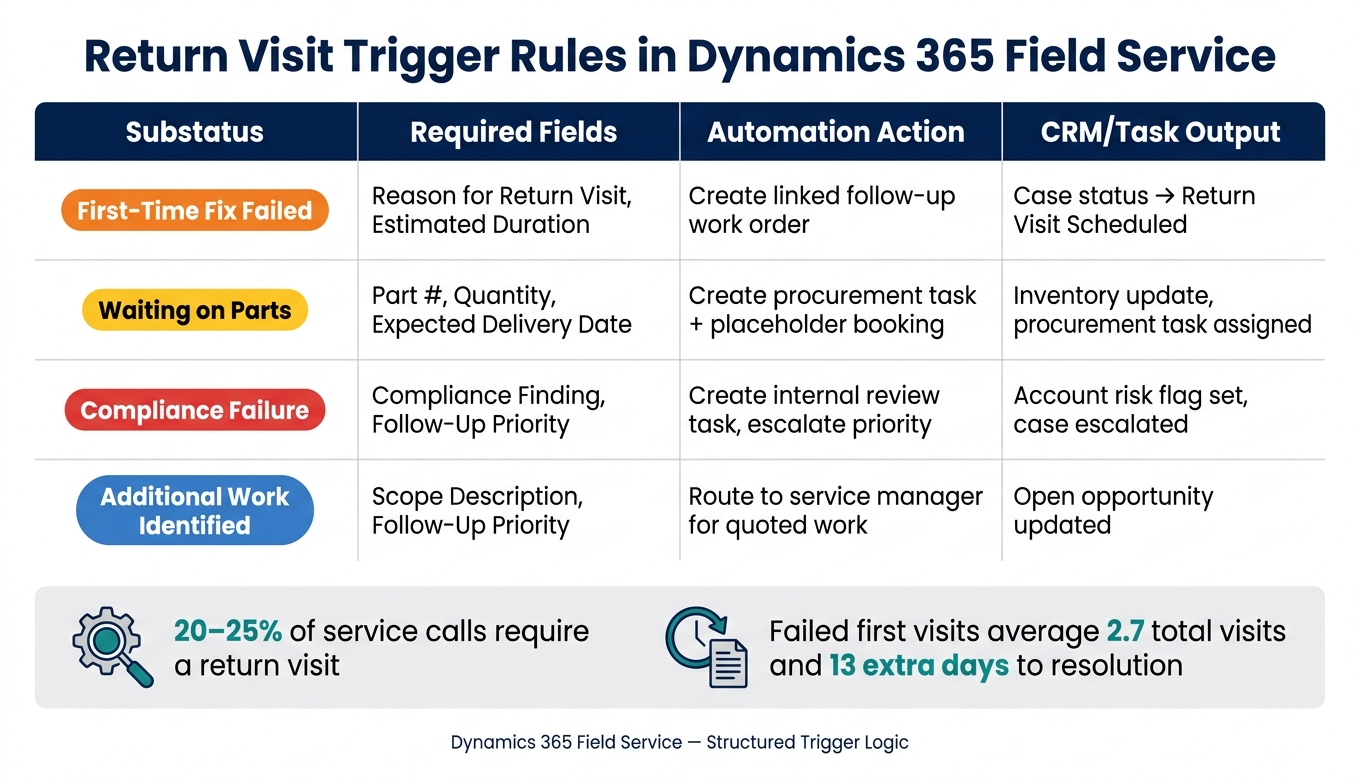
Return Visit Trigger Rules: Booking Substatus to Automation Action in Dynamics 365
Failed first-time fix: automatically create a linked follow-up work order
A failed first-time fix needs a clear next step. In Dynamics 365, each trigger should connect one field issue to one follow-up action.
If a technician can’t finish the job on the first visit, you can use the work order status, booking status, and structured field data to create a linked follow-up work order. That new work order should pull in the right customer details, priority, and any service tasks that still need to be done on the next visit.
This setup matters for a simple reason: the next technician shouldn’t have to piece the story together from scratch. Keeping the follow-up tied to the original record gives the service team the context they need when scheduling the next appointment.
Missing parts: trigger rescheduling, procurement tasks, and inventory updates
Missing parts usually lead to one of two paths.
- Reschedule the current booking if the part is expected soon
- Create a new linked follow-up work order if the delay will take longer or the job needs another review
The decision should come from structured part fields, not guesswork. Fields like part number, quantity, and expected delivery date help Dynamics 365 decide whether to reschedule or reopen the job.
Whichever path you use, the process should also create the right procurement or warehouse task and update inventory-related records. Dynamics 365 can update inventory records through ERP integration without manual re-entry, which cuts down on duplicate work and helps keep stock data in sync.
Technician notes and compliance findings: turn field input into action
Technician notes are helpful, but they shouldn’t be the main thing your triggers depend on. Free-text notes can tell the story, but structured field data is what rules can check every time without drifting off course.
A better setup is to capture structured inspection results, compliance findings, and follow-up indicators. With those inputs in place, the same trigger can create internal tasks and update CRM records without manual re-entry.
Those outputs then feed the automation rules that come next.
What automation should do after a trigger fires
Carry the right data forward when scheduling a follow-up
Once the trigger fires, the system should turn that return visit into records the team can use right away. The follow-up work order should be created as a linked record, with the full context from the original job still attached.
That means carrying over the asset, site address, incident type, service account, priority level, and SLA target dates from the first work order. Billing details should move over too, including whether the visit is under warranty, covered by contract, or billable.
On the scheduling side, the system should suggest appointment windows in local time. It should also account for technician availability, skill certifications, and travel distance. And if the job crosses state lines, time zone handling needs to be spot on so the booking stays accurate. Without that context, someone ends up rebuilding the visit by hand.
Create internal tasks and update CRM records automatically
After the follow-up work order is in place, automation should create tasks for each team so work doesn’t stall between handoffs.
- Dispatch should get a review task to confirm the technician assignment and route.
- The parts or inventory team should get a procurement task tied to the parts list, including current stock status, whether items must be ordered, any certification needs, and lead times that could shift the return visit date.
CRM records should update at the same time. The related Case should show Return Visit Scheduled with the scheduled date and appointment window. The Account should carry a risk flag so account managers see it before the next customer call. If there’s an open opportunity tied to that account, the return visit should appear there too. Repeated service issues can slow down an upgrade sale or push back a renewal, so sales teams need that context early.
Those updates give operations a clear path to act before the next dispatch cycle.
Manual versus automated return visit handling
Manual handling creates more mistakes, slows cycle times, and leaves room for compliance issues. With automation in place, cycle times move from days to hours [1][2]. Structured trigger rules also close documentation gaps by escalating repeat incidents or safety-critical issues with the full record attached.
Conclusion: Build return visit triggers as a controlled service process
Unplanned return visits create risk. Rule-based triggers turn that risk into a process your team can control.
It starts with clean status logic and structured fields. Work order status, booking substatus, and structured technician input should drive the workflow on their own: follow-up work order, procurement task, and CRM update.
That matters because return visits are common and expensive. About 20% to 25% of service calls need a return visit, and failed first visits average 2.7 total visits and 13 extra days to resolution.[7] A controlled trigger process won’t stop every return visit. But it does make recovery faster and easier to predict.
Key takeaways for operations and IT leaders
A controlled trigger process helps cut missed follow-ups, keeps linked service history in place, and creates corrective tasks automatically.
To make this work in Dynamics 365, start with controlled statuses and required fields. Keep substatuses limited to a set that maps straight to your automation logic. Make failure reason, missing part numbers, and next-action dates required when certain substatuses are selected. Start by piloting triggers for the highest-risk cases, like failed fixes and safety findings. Then adjust based on what the data shows.
For teams linking Field Service triggers to ERP, procurement, or governed AI workflows, Ryshe offers senior-led AI, data, automation, and system integration delivery.
FAQs
How do booking status and work order status work together?
In Dynamics 365 Field Service, work order status shows the state of the overall service job. Booking status shows where the technician is in that job.
When a technician changes the booking status, automation can update the work order status at the same time. That helps keep both aligned and can trigger follow-up actions, like scheduling a return visit, creating tasks, or notifying customer service.
When should I reschedule a booking instead of creating a follow-up work order?
Reschedule a booking when the service appointment still isn’t finished due to small delays or short-term issues, like technician availability or calendar conflicts, and the original work order scope remains the same.
Create a follow-up work order when the first task is finished but more labor or parts are needed because of new findings, a failed first-time fix, or maintenance that falls outside the original scope.
Which fields should be required to trigger a return visit?
The available information does not say which fields are required to trigger a return visit in Dynamics 365 Field Service.
What it does say is that return visits can be linked to:
- status changes
- failed first-time fixes
- missing parts
- technician notes
So if you’re looking for a field-level rule or a set of required fields, that detail isn’t included in the source material.